








How to Repair a Wet Motherboard: Step-by-Step Guide
A wet motherboard can fail within minutes if power remains connected, yet many devices can still be recovered when the right steps are taken quickly and in the correct order. Water exposure does not always mean permanent damage, but the real risk comes from short circuits, corrosion, and hidden moisture trapped under components.
Effective repair is not about guesswork—it follows a clear technical process that moves from immediate power isolation, through careful inspection and cleaning, to controlled drying and safe testing. Each stage plays a critical role in preventing further electrical damage and improving the chance of full recovery.
This guide walks through a structured, step-by-step method to repair a wet motherboard safely and efficiently. From the first response after liquid exposure to the final decision on whether the board can be restored or replaced, each step is designed to minimize risk and maximize repair success.
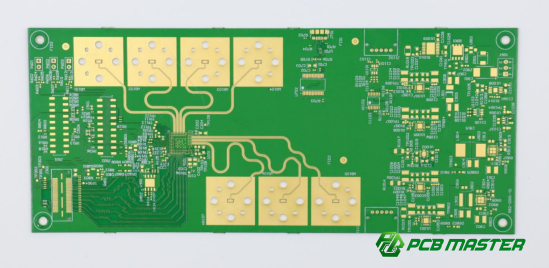
Step 1: Immediate Power Shutdown After Water Exposure
Water inside a motherboard creates a high risk of short circuits. At this stage, the most important goal is simple: stop all electrical activity immediately to prevent permanent damage . The faster power is cut off, the higher the chance of successful wet motherboard repair.
Turn off device power immediately
Shut down the device as fast as possible to stop electrical current flow.
When a motherboard gets wet, even a small amount of electricity can travel through water and cause short circuits. This can burn tiny circuits within seconds. That is why the first action in any wet motherboard repair process is a complete shutdown.
For example, if a laptop spills water on the keyboard, do not wait for it to “finish shutting down normally.” Press and hold the power button for 5–10 seconds until the device turns off instantly. This hard shutdown prevents the system from continuing to send power through damaged areas.
Think of it like stopping a car immediately when the road is flooded—continuing to drive increases damage risk. The same idea applies to motherboard water damage repair : power off first, ask questions later.
Disconnect battery and power source
Remove all power sources to ensure no electricity reaches the motherboard.
After shutting down the device, the next critical step is to fully disconnect power. Many devices still carry standby voltage even when turned off, especially laptops and smartphones. This hidden power can continue damaging a wet motherboard.
For laptops, unplug the charger first, then remove the internal battery if possible. For desktops, disconnect the power cable from the PSU and hold the power button for a few seconds to discharge remaining electricity.
For example, in smartphone water damage cases, technicians always disconnect the battery connector before doing anything else. This step prevents slow corrosion caused by low-level current flow.
In repairing a wet motherboard , complete power isolation is not optional—it is essential for avoiding irreversible circuit failure.
Remove external devices and accessories
Detach all connected hardware to prevent additional damage and contamination.
External devices can transfer electricity, moisture, or contaminants back into the motherboard. USB drives, external keyboards, monitors, and expansion cards should be removed immediately after water exposure.
For instance, if a desktop PC gets liquid inside, leaving a USB device plugged in can still allow small electrical feedback paths. While this may not always cause immediate failure, it increases risk during wet motherboard recovery procedures .
Removing accessories also helps during inspection and cleaning. A fully isolated motherboard is easier to dry, easier to inspect for corrosion, and safer to handle.
A simple rule used by repair technicians is: “Nothing should stay connected except what is absolutely necessary for disassembly.”
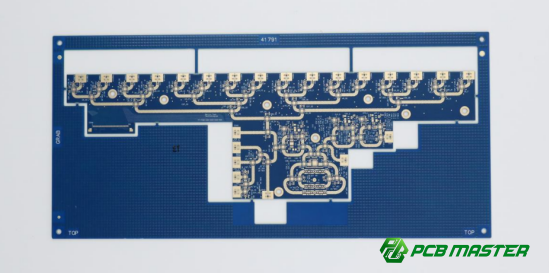
Step 2: Prepare the Motherboard for Repair
After cutting off all power, the next stage in wet motherboard repair is preparation. This step is critical because proper setup reduces further damage, improves cleaning results, and makes inspection safer and more accurate.
Gather cleaning tools and materials
Prepare all required tools before touching the wet motherboard to avoid delays and contamination.
A successful wet motherboard cleaning process requires the right materials ready in advance. Common tools include high-purity isopropyl alcohol (90%–99%), a soft anti-static brush, lint-free cloths, and compressed air. These help remove water, dirt, and corrosion safely.
For example, a technician repairing a water-damaged laptop motherboard will often lay out all tools before opening the device. This prevents interruptions, which is important because leaving a wet board exposed too long can increase corrosion.
Think of this step like preparing medical tools before surgery—everything must be ready so the process is fast and controlled.
Set up an ESD-safe working environment
Create a static-free workspace to prevent electrical damage during motherboard handling.
An ESD-safe environment means protecting the motherboard from electrostatic discharge (ESD) , which is invisible static electricity that can damage sensitive chips. Even a small static shock can destroy circuits on a wet or partially damaged board.
To set up a safe workspace, use an anti-static mat, wear an anti-static wrist strap, and avoid working on carpet or dry plastic surfaces. Keep humidity moderate if possible, since very dry air increases static risk.
For example, professional PCB repair labs always ground technicians before touching any board. In motherboard water damage repair , this step is just as important as cleaning because static damage is often permanent and invisible.
Remove motherboard from the device
Carefully detach the motherboard to allow full inspection and proper cleaning.
Removing the motherboard is necessary for effective wet motherboard repair , because moisture often spreads under components where it cannot dry naturally. Keeping the board inside the device can trap water and increase corrosion risk.
Start by documenting cable positions or taking photos before disassembly. Then disconnect connectors, screws, and mounting points step by step. Handle the board only by its edges to avoid touching sensitive components.
For example, in a laptop spill scenario, liquid often reaches beneath the keyboard and into the motherboard layer. If the board is not removed, cleaning becomes incomplete and hidden corrosion may continue over time.
Think of this step as “fully exposing the damage area” so that every part of the board can be cleaned, inspected, and restored properly during wet motherboard cleaning and repair .
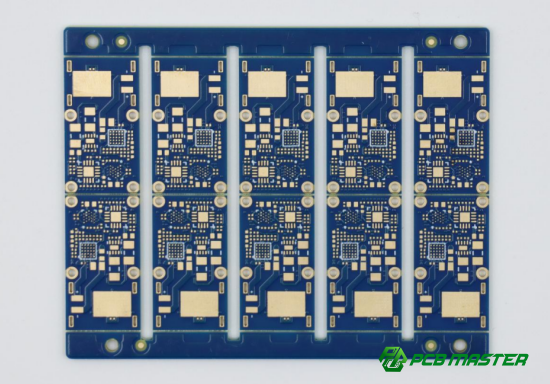
Step 3: Inspect the Wet Motherboard for Damage
After the motherboard is safely removed and prepared, the next stage in wet motherboard repair is inspection. This step helps determine how serious the water damage is and what kind of cleaning or repair will be needed next.
Identify liquid exposure type
Determine what type of liquid entered the motherboard to understand damage severity.
Not all liquids damage a motherboard in the same way. Clean water is less harmful than sugary drinks, saltwater, or coffee. In motherboard water damage repair , identifying the liquid type helps predict corrosion speed and repair difficulty.
For example, pure water from a spill may cause temporary short circuits but can often be cleaned successfully. In contrast, soda or coffee leaves sticky residues that continue to corrode circuits even after drying.
Technicians often classify liquid exposure into three types:
- Clean water (low contamination risk)
- Dirty water or beverages (medium risk)
- Saltwater or chemical liquids (high risk)
This classification guides the entire wet motherboard repair process .
Check moisture, residue, and contamination
Look for visible water, sticky residue, and hidden contamination on the board surface.
Careful visual inspection is essential before cleaning. Use good lighting or a magnifier to check if any moisture is still present on the motherboard. Even small water droplets trapped between components can cause future failure.
Residue is also important. White stains, sticky layers, or discoloration often indicate that liquid has already started reacting with metal parts. In wet motherboard cleaning , these signs show that corrosion has begun.
For example, a laptop exposed to spilled juice may look dry on the surface, but still have sticky residue under chips. This hidden contamination can slowly damage circuits if not fully removed.
Think of this step as “reading the damage footprint” left by the liquid.
Inspect connectors and circuit components
Examine ports, chips, and power circuits for corrosion or physical damage.
Connectors and circuit components are the most sensitive parts during motherboard water damage repair . Focus on USB ports, charging connectors, RAM slots, and power delivery areas.
Look for green or white corrosion, rust-like buildup, or darkened areas on metal contacts. These are early signs of oxidation, which can interrupt electrical flow even if the board appears dry.
For example, a desktop motherboard exposed to water may still power on, but a corroded RAM slot can cause random crashes or failure to boot.
A simple method used by technicians is to check “high-current zones first,” because power circuits are most likely to fail after water exposure. This inspection step helps decide whether simple cleaning is enough or if component-level repair will be needed.
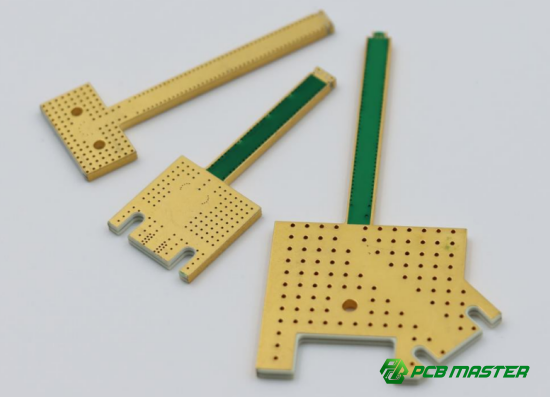
Step 4: Clean the Wet Motherboard Properly
After inspection confirms the type and extent of damage, the next stage in wet motherboard repair is cleaning. This step is critical because proper cleaning removes moisture, corrosion, and conductive residues that can cause short circuits or long-term failure.
Remove surface moisture
Gently remove visible water from the motherboard before deeper cleaning begins.
The first step in wet motherboard cleaning is to eliminate all visible liquid on the surface. Use a lint-free cloth or soft paper towel to gently absorb water without pressing too hard. The goal is to remove moisture, not spread it across components.
For example, if a laptop motherboard is still wet after a spill, lightly blotting the surface can prevent water from seeping deeper under chips. This is especially important for areas like the CPU socket and power circuits.
Think of this step as “drying the top layer first” before dealing with hidden contamination.
Apply isopropyl alcohol cleaning
Use high-purity isopropyl alcohol to safely clean and displace moisture.
In motherboard water damage repair , isopropyl alcohol (90%–99%) is widely used because it evaporates quickly and helps remove water and light contamination. Apply it using a soft anti-static brush or dropper.
Gently brush the affected areas so the alcohol can reach between small components. This helps dissolve residues and pushes out trapped moisture.
For example, technicians repairing a spilled coffee incident use alcohol to break down sugar residue that plain water cannot remove. Without this step, sticky contaminants may continue damaging the board even after drying.
Remove corrosion and conductive residue
Clean oxidized or conductive buildup to restore safe electrical flow.
Corrosion appears as green, white, or brown buildup on metal parts. In wet motherboard repair , this is a critical issue because corrosion can block or distort electrical signals.
Use a soft brush dipped in isopropyl alcohol to gently remove corrosion from solder joints, connectors, and chip legs. For heavier buildup, repeated cleaning may be necessary.
For example, a corroded USB port may still look intact but fail to transmit data due to oxidized contacts. Removing this layer is essential for restoring normal function.
Think of this step as “restoring clean metal contact surfaces.”
Clean tight and hidden areas
Remove contamination from hard-to-reach spaces where moisture often stays trapped.
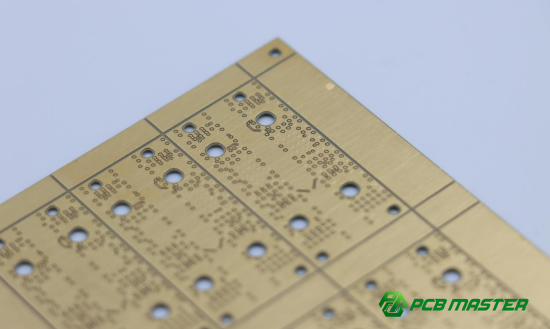
Water often hides under chips, inside connectors, and between fine-pitch components. In wet motherboard cleaning , these hidden areas are the most dangerous because trapped moisture can cause delayed failure.
Use a soft brush, compressed air (low pressure), or careful alcohol flushing to reach these spaces. Move slowly to avoid damaging small components.
For example, under BGA chips (large square ICs), water can remain trapped even when the surface looks dry. This is a common reason why some boards fail days after a spill.
This step ensures the entire motherboard is truly clean, not just visually clean.
Step 5: Dry the Motherboard Safely
After cleaning, the motherboard must be completely dried before any power is applied. In wet motherboard repair , improper drying is one of the most common reasons for failure, because even hidden moisture can still cause short circuits.
Use natural air-drying methods
Let the motherboard dry slowly in clean air without applying force or heat.
The safest method in motherboard water damage repair is natural air drying. Place the motherboard on a clean, non-metal surface in a dry, ventilated room. Position it so air can reach both sides evenly.
For example, technicians often place the board on an anti-static mat and let it dry for 24–48 hours depending on humidity. This slow process allows moisture trapped between components to gradually evaporate.
Think of it like letting wet clothes dry naturally instead of rushing them with heat—slow drying reduces hidden damage risk.
Avoid heat-based drying techniques
Do not use high heat tools because they can damage sensitive electronic components.
In wet motherboard cleaning and repair , heat sources like hair dryers, ovens, or heat guns should be avoided. High temperature can warp the PCB, loosen solder joints, or damage microchips.
For example, using a hair dryer may seem helpful, but it can push water deeper into tight spaces instead of removing it. This often makes internal corrosion worse over time.
Even if the board looks dry on the surface, heat can create uneven drying, leaving trapped moisture underneath components. That hidden moisture is especially dangerous in motherboard water damage cases .
Ensure complete moisture evaporation
Confirm that no hidden or surface moisture remains before testing the motherboard.
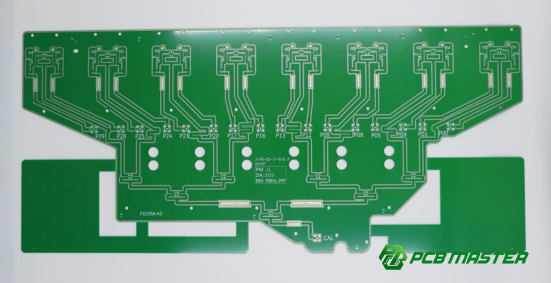
Before moving to testing, it is essential to make sure the board is fully dry. In wet motherboard repair , even a small amount of leftover moisture can cause immediate failure when power is applied.
Check areas under chips, inside connectors, and around power circuits. A simple method used by technicians is to visually inspect under strong light and gently tilt the board to look for reflections that indicate moisture.
For example, a motherboard may feel dry on top but still hold water under a large IC chip. Powering it on too early in this condition can instantly short the circuit.
Complete evaporation ensures the board is safe for the next stage: electrical testing and power-on verification.
Step 6: Test the Motherboard After Cleaning
After the motherboard is fully dry, the next stage in wet motherboard repair is testing. This step confirms whether the cleaning and drying process successfully restored basic functionality without causing short circuits or hidden failures.
Reinstall essential components
Install only the minimum required hardware to safely test the motherboard.
In motherboard water damage repair , do not fully rebuild the device at first. Instead, reinstall only essential components such as the CPU, one RAM stick, and the power connector. This reduces risk if the board still has hidden damage.
For example, when testing a water-damaged laptop motherboard, technicians often skip reinstalling drives, extra RAM modules, or peripherals. This “minimal setup” approach helps isolate problems and prevents unnecessary damage if something is still faulty.
Think of this step like starting a car engine test with only the key systems connected, not the full vehicle load.
Perform initial power-on test
Turn on the system carefully to check if the motherboard receives and distributes power correctly.
The first power-on in wet motherboard repair should be done cautiously. Connect the power supply and press the power button while observing closely for signs of normal startup, such as indicator lights or fan movement.
If there is no response, immediately disconnect power. Do not repeatedly try to force startup, as this may damage weak circuits. A single controlled test is enough at this stage.
For example, if a desktop motherboard was exposed to liquid, a successful initial power-on may show fans spinning briefly and LEDs lighting up, indicating that core power circuits are still functional.
Verify system boot and stability
Confirm that the motherboard can boot into BIOS or operating system without errors or instability.
In wet motherboard testing , successful boot is a key indicator that repair steps worked. Check whether the system enters BIOS normally, detects RAM and storage devices, and runs without freezing.
For instance, a repaired motherboard may boot into BIOS but still show unstable behavior like random restarts. This indicates partial damage that requires further inspection.
A stable system should run continuously for several minutes without overheating, shutdowns, or error messages. This final check confirms whether the wet motherboard repair process has been fully successful or if additional repair work is needed.
Step 7: Evaluate Repair Feasibility
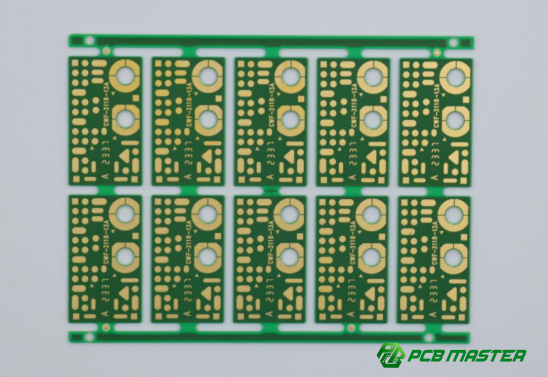
After testing the motherboard, the next step in wet motherboard repair is to evaluate whether the board can still be reliably repaired. This stage helps decide if further component-level repair is worthwhile or if replacement is the safer option.
Assess corrosion severity
Check how widespread and deep the corrosion damage is on the motherboard.
In motherboard water damage repair , corrosion is a key indicator of long-term survival. Light surface corrosion (small green or white spots) can often be cleaned and repaired. However, deep corrosion that spreads under chips or across multiple layers of the PCB usually indicates serious structural damage.
For example, a motherboard exposed to clean water for a short time may show only minor oxidation on connectors. In contrast, saltwater exposure often causes fast, deep corrosion that eats into copper traces within hours.
Think of corrosion as “rust inside the circuit system”—the deeper it goes, the harder it is to restore full functionality.
Identify damaged components
Locate specific chips, connectors, or circuits that no longer function properly.
In wet motherboard repair evaluation , it is important to identify exactly which components are affected. Common failure points include power ICs, MOSFETs, USB ports, and RAM slots. These areas are highly sensitive to moisture and electrical stress.
For example, after cleaning and drying, a motherboard may still fail to detect RAM. This usually points to damaged memory slots or nearby power delivery circuits rather than overall board failure.
Technicians often use visual inspection combined with multimeter testing to find broken connections or short circuits. This step turns general damage into specific repair targets.
Decide repair or replacement
Determine whether fixing the motherboard is cost-effective and technically possible.
The final step in wet motherboard repair decision-making is choosing between repair and replacement. If damage is limited to a few components, repair is often practical and cost-effective. However, if multiple layers of the PCB are damaged or corrosion is widespread, replacement is usually the better option.
For example, replacing a single damaged capacitor or power chip is relatively simple. But if multiple circuit layers are corroded, repair time and cost may exceed the value of a new motherboard.
A simple rule used in electronics repair is: if repair cost exceeds 50–70% of replacement cost, replacement is usually recommended.
This decision ensures both technical reliability and economic efficiency.
Step 8: Prevent Future Water Damage
After completing wet motherboard repair , prevention becomes the final and most important stage. The goal is to reduce the risk of repeat water exposure, which is one of the most common causes of motherboard failure in real-world environments.
Keep liquids away from electronics
Prevent any direct contact between liquids and electronic devices to avoid motherboard water damage.
The simplest way to avoid motherboard water damage repair in the future is physical separation between liquids and electronics. Drinks, bottles, and cleaning fluids should never be placed near laptops, desktops, or PCB-based equipment.
For example, many laptop water damage cases happen because of coffee or water spills on desks. A practical habit is to place drinks in a separate area or use sealed containers when working near electronics.
Think of this as creating a “no-liquid safety zone” around your devices.
Control humidity in working environment
Maintain stable and low humidity levels to reduce moisture-related motherboard risks.
High humidity can slowly damage electronics even without direct spills. In wet motherboard prevention , moisture in the air can lead to condensation on PCB surfaces, especially in poorly ventilated rooms.
Using dehumidifiers or air conditioning helps keep humidity at safe levels (typically below 60%). This is especially important in coastal or tropical environments where moisture levels are naturally high.
For example, electronics stored in damp basements often develop corrosion over time even if they are never directly exposed to water.
Perform regular maintenance checks
Inspect devices regularly to detect early signs of moisture or corrosion before failure occurs.
Routine inspection helps identify early warning signs in motherboard water damage prevention , such as oxidation on connectors, dust buildup, or unusual performance issues.
For example, a technician may periodically open desktop cases to check for dust and moisture accumulation. Early cleaning can prevent long-term corrosion and reduce repair costs.
A simple maintenance habit—checking devices every few months—can significantly extend hardware lifespan and reduce the need for future wet motherboard repair .
Conclusion
A wet motherboard does not always mean permanent failure, especially when each step is handled carefully and in the correct order. From immediate power shutdown and careful inspection to cleaning, drying, and controlled testing, every stage plays a direct role in protecting the circuit and improving recovery chances. When these steps are followed properly, many water-damaged boards can return to stable operation without the need for full replacement.
However, successful repair also depends on experience, tools, and the ability to accurately judge hidden damage that is not always visible on the surface. For cases where corrosion is severe or multilayer PCB damage is suspected, professional support becomes an important factor in achieving a reliable result.
In situations where higher precision manufacturing, repair expertise, or replacement solutions are required, working with a trusted industry partner can make a significant difference. At this point, PCBMASTER, a seasoned PCB and PCBA supplier , provides strong technical capability and manufacturing support for complex circuit board needs, helping ensure both performance stability and long-term reliability.
FAQs
What is the biggest mistake people make after a motherboard gets exposed to water?
The most common mistake is trying to power on the device too quickly. Even a small amount of residual moisture can create short circuits that cause permanent chip-level damage within seconds.
Can a motherboard still work if it was briefly exposed to liquid?
Yes, short exposure does not always mean failure. If the device is powered off immediately and properly cleaned and dried, many boards can recover without long-term issues.
Why is hidden moisture more dangerous than visible water?
Hidden moisture trapped under chips or connectors can stay active for hours or days, slowly causing corrosion or delayed electrical failure even after the surface looks dry.
What role does cleaning solution quality play in motherboard recovery?
High-purity cleaning solutions help remove contaminants without leaving conductive residues. Low-quality liquids can introduce impurities that increase the risk of future instability.
How can early signs of motherboard damage be detected after a spill?
Early signs often include unstable power behavior, intermittent device recognition, or small corrosion spots near connectors that may not immediately affect full operation.
About the Author

Carol Luo
PCB Design EngineerI'm Carol, a PCB Engineer at PCBMASTER with experience in PCB design and manufacturing engineering since 2018. I focus on translating engineering requirements into reliable PCB solutions, with expertise in stack-up design, material selection, and design-for-manufacturing (DFM). I share practical engineering insights from real-world PCB design and production experience.
Visit Carol Luo's Profile